

What is NovaLCT in an LED Display System?
NovaLCT is NovaStar's LED display configuration software, used at the control layer, not the content playback layer. Simply put, if an LED screen is a wall composed of many cabinets, NovaLCT helps the controller understand where each cabinet is located, in which direction it receives signals, and what scanning parameters its internal modules require. It is a crucial technical tool for installing, maintaining, or handing over LED screens using the NovaStar system.
!NovaStar VX controller placed in an LED screen technical cabinet
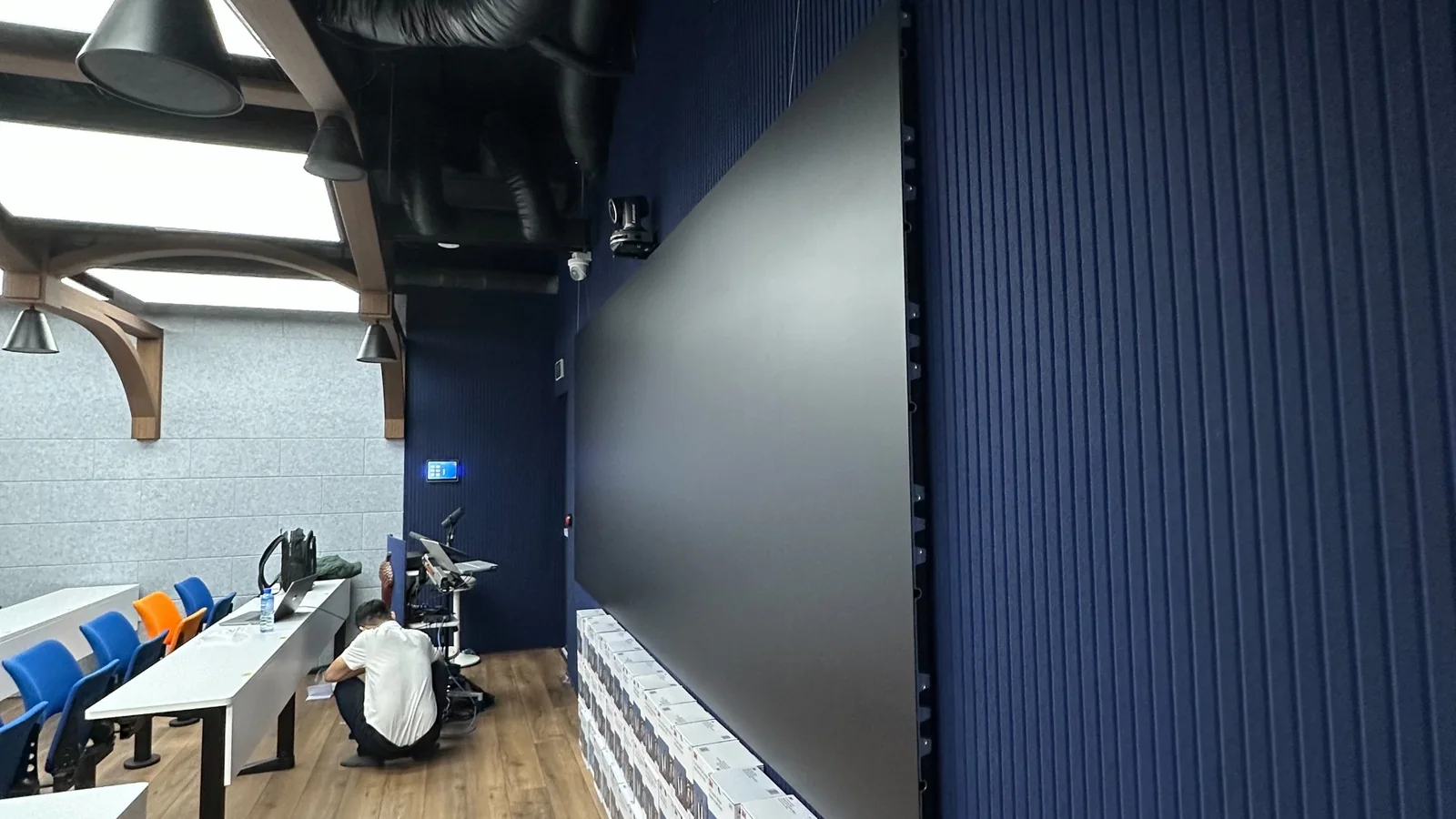
A key distinction from the outset: NovaStar handles the control and image processing, not the manufacturing of LED panels or modules. A system might use modules from BOE or another LED manufacturer, cabinets assembled by an integration company, and signal processing using NovaStar controllers. Therefore, when we talk about "NovaLCT configuration," we are referring to configuring the signal path and control parameters for the hardware to display correctly, not altering the fundamental nature of the LED panel.
In practice, NovaLCT is typically used at three stages. First, during new installations, technicians need to identify receiving cards, read or import smart settings, and map the screen assembly. Second, when replacing cards, modules, or expanding the screen, it's necessary to synchronize the old configuration with the new components. Third, during maintenance, when the operations team needs to troubleshoot why the screen has color shifts, incorrect ordering, or no display after a power outage, cable change, or cabinet replacement.

How Does an LED Screen Signal Chain Work?
A basic LED screen receives signals in a chain: content source from a PC or media player, into a sending card or controller like the NovaStar VX series, transmitted via Ethernet or fiber optic cable, to the receiving card within each cabinet, and then the receiving card controls the LED modules. NovaLCT is involved in the configuration phase to ensure these links understand each other correctly. If the physical chain is correct but the configuration is wrong, the screen might still light up but display in the wrong order, with incorrect colors, or not cover the full image area.
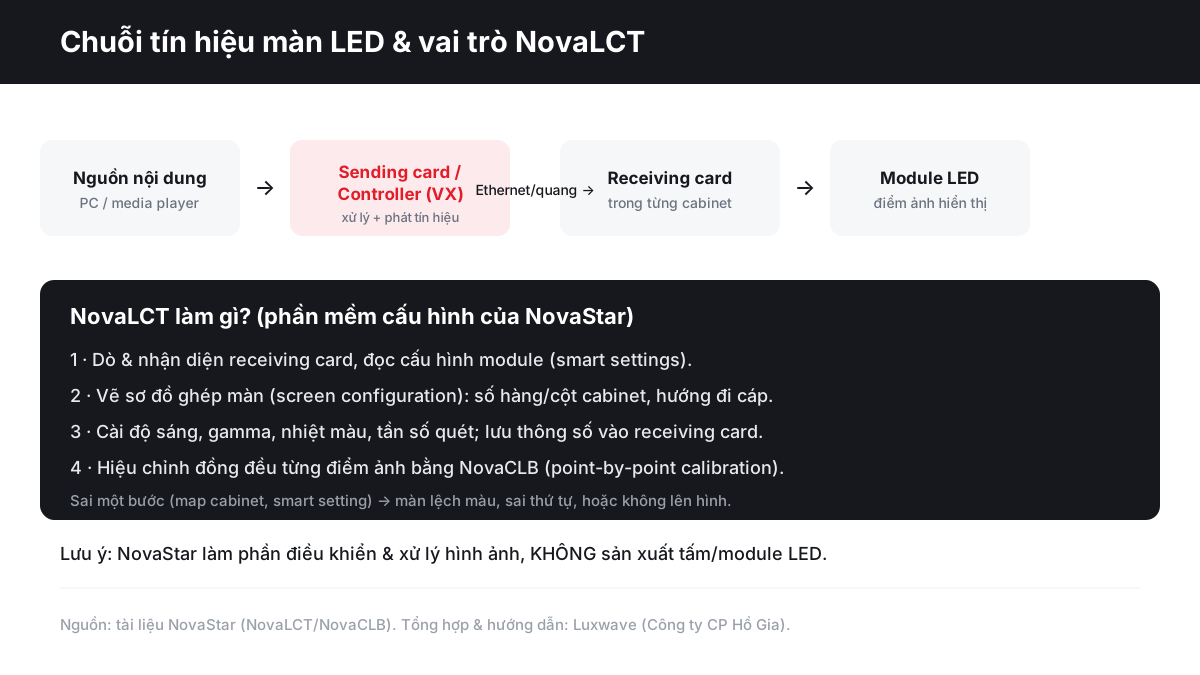
The sending card or controller is the main output port of the control system. It receives images from a computer, media player, or processing device, then divides the data into streams for transmission to the LED screen. With integrated controllers like the NovaStar VX1000, the sending and image processing functions are often combined in a single device, allowing the operations team to manage input sources, scaling, and screen configuration within the same ecosystem. For larger projects, processing units like the NovaStar H Series can be involved in managing multiple sources and screens.
The receiving card resides within each cabinet and acts as the "translator" of signals into commands for controlling the LED modules. Each card needs to know the scanning type of the module it's controlling, the color order, the pixel width and height, and which data region it's responsible for within the overall screen. Therefore, a single LED wall might use dozens or hundreds of receiving cards, but NovaLCT must make them function as a seamless display surface.

What is Smart Setting in NovaLCT and Why is it Prone to Errors?
Smart setting is the step where NovaLCT and the receiving card understand the electrical structure of the LED modules. For beginners, it can be visualized as defining the module's "language": how many pixels it has, how the driver ICs control it, the Red-Green-Blue order, and how rows are scanned and regions are divided. When these parameters are correct, the receiving card sends data to the module as expected; when incorrect, display errors appear very quickly.
Smart setting errors are usually not subtle but immediately visible: color shifts, red appearing as blue, vertical lines, flickering, partial display, or no image at all. More dangerously, operators might mistake these for issues with network cables, power supplies, or modules, leading to unnecessary component replacements. Therefore, configuration files received from the screen supplier or module technical specifications must be carefully stored from the initial handover.
For premium LED screens used in meeting rooms, control rooms, or studios, smart settings require even tighter control, as minor errors in color, gamma, and refresh rate are easily detected by cameras or the human eye. The article LED Refresh Rate 3840Hz and Camera Recording specifically analyzes why refresh rate is not just a catalog number but directly impacts image banding, flicker, and the experience during video recording.
What are the Steps for Screen Configuration in NovaLCT?
The basic workflow in NovaLCT typically follows this order: connect the computer to the controller, identify sending and receiving cards, read or import smart settings, define cabinet dimensions, map rows and columns, set cable direction, test with patterns, and then save the configuration to the receiving cards. For beginners, the key is not to memorize button names but to understand the purpose of each step to avoid incorrect adjustments while the screen is operational.
The first step is to check physical connections. The configuration computer must be able to see the NovaStar controller; the controller must be connected to the cabinets via Ethernet or fiber optics for longer distances. The content source also needs to be set to the correct output resolution, as NovaLCT cannot fix all input signal issues. If you are selecting a controller for a new project, the guide Choosing an LED Screen Controller will help compare resolutions, port counts, and expansion options.
The second step is configuring the receiving cards and modules. This is not an area for guesswork. If a standard configuration file is available from the supplier, load that file correctly, then verify with color patterns and test images. If no file is provided, technicians must read smart settings or follow module documentation, but this requires experience, as some modules that look identical externally may have different internal scanning parameters.
The third step is screen configuration, which involves mapping the screen assembly. You define how many cabinets the screen has horizontally and vertically, the pixel dimensions of each cabinet, and the direction of the signal cable path. This is where many beginners make mistakes: the on-screen map must accurately reflect the actual cable routing, not a perceived "left-to-right" flow if the cables actually run in the opposite direction or in a zigzag pattern.
How to Map Cabinets Correctly to Avoid Image Rotation?
Correct cabinet mapping means NovaLCT must know which part of the image each cabinet receives. An LED wall might appear as a simple rectangle, but signal cables often run from the controller to the first cabinet, then daisy-chain through subsequent cabinets horizontally, vertically, or in a zigzag pattern to optimize installation. If the software map doesn't match this physical cable path, the image might be flipped left-right, rows might be swapped, or cabinets might display in incorrect sections.
When mapping, start with the first cabinet receiving the signal from the controller's output port. Then, trace the actual cables: from this cabinet, the cable goes right, left, down to the next row, or up to the previous row. Each output port on the controller should be clearly labeled with the screen area it's responsible for, especially for large screens with multiple ports. This method, while manual, significantly reduces errors compared to drawing a map from memory after the technical cabinet is closed.
An operational tip is to use test patterns with sequential numbers, grids, or color-coded regions for verification. If a screen in a conference hall displays slides normally but full-screen videos show fragmented sections, the issue might be with cabinet mapping or the receiving area's resolution, not necessarily a module defect. For systems managing multiple screens in various locations, the article Remote LED Screen Management via Cloud can be helpful, but the initial configuration at the receiving card must be correct first.
How to Adjust Brightness, Gamma, and Calibration?
After the screen displays correctly ordered images, NovaLCT is used to set display parameters such as brightness, gamma, color temperature, and refresh rate, and save them to the receiving cards. This step transforms a "lit" screen into a "ready-to-use" screen. For meeting room screens, excessive brightness causes eye strain; for stage or auditorium screens, incorrect gamma and color temperature result in unnatural skin tones; for camera-facing screens, low refresh rates can create banding.
Brightness should be adjusted according to the actual environment, not based on perception during daytime or nighttime installation. Indoor screens typically don't need to be excessively bright because viewers are close and room lighting is stable. Gamma affects how the screen renders dark and bright areas, while color temperature determines whether the image appears cool or warm. These parameters should be saved to the receiving cards after verification, so the system maintains stable configuration upon reboot.
Calibration is a more advanced step. NovaLCT can work with NovaCLB to perform uniform pixel-by-pixel calibration. The goal is to reduce brightness and color variations between pixels, modules, or cabinets. This step is highly valuable for small-pitch LED screens, BOE screens in high-end meeting rooms, or for camera recording scenarios, but should not be attempted without correct calibration data for the specific batch of modules. Incorrect data can degrade uniformity instead of improving it.
When Should You Contact Luxwave Technical Support?
You should contact professional technicians for initial configuration, receiving card replacement, multiple module replacements, controller changes, screen size expansions, or if the screen exhibits color shifts, incorrect ordering, or flickering after cable interventions. These situations often blur the lines between software and hardware errors. While a beginner can check cables, power, and card status, they should not overwrite smart settings without the correct file.
Luxwave is a premium LED screen brand under Ho Gia JSC, the official distributor for BOE, NovaStar, and Muxwave in Vietnam. When implementing projects, Luxwave not only sells equipment but also provides configuration support, testing, backup file storage, and operator training. The correct handover includes both a stable running screen and a complete configuration package: NovaLCT files, port maps, cabinet maps, brightness settings, and component replacement notes.
For new clients managing screens, training is as crucial as installation. The operations team should know how to power on/off correctly, check content sources, identify issues originating from the PC versus the controller, adjust brightness according to context, and contact support before overwriting configurations. NovaLCT is a powerful tool, but its true value lies in the process: correct configuration, proper saving, clear handover, and avoiding trial-and-error adjustments on screens serving critical events.
Conclusion: How Much Should Beginners Learn About NovaLCT?
Beginners managing LED screens should understand NovaLCT at an operational level: know the signal chain, understand the roles of sending and receiving cards, recognize smart setting as an area not to guess, know that screen configuration must match cable paths, and understand when to save settings to the card. This level of understanding is sufficient for accurate communication with technicians, handling simple errors, and avoiding risky operations while the screen is active.
If you must perform operations yourself, follow a cautious approach: back up configuration files first, record port assignments and cable routes, make small incremental adjustments, test with patterns, and then save to the receiving card. Absolutely do not download software from unofficial sources or use cracked versions; refer to the official download channel for NovaStar NovaLCT and manufacturer documentation. For screens serving meeting rooms, auditoriums, showrooms, or events, contacting Luxwave for proper configuration and training is far more cost-effective than fixing errors after handover.
Conclusion: How Much Should Beginners Learn About NovaLCT?
Beginners managing LED screens should understand NovaLCT at an operational level: know the signal chain, understand the roles of sending and receiving cards, recognize smart setting as an area not to guess, know that screen configuration must match cable paths, and understand when to save settings to the card. This level of understanding is sufficient for accurate communication with technicians, handling simple errors, and avoiding risky operations while the screen is active.
If you must perform operations yourself, follow a cautious approach: back up configuration files first, record port assignments and cable routes, make small incremental adjustments, test with patterns, and then save to the receiving card. Absolutely do not download software from unofficial sources or use cracked versions; refer to the official download channel for NovaStar NovaLCT and manufacturer documentation. For screens serving meeting rooms, auditoriums, showrooms, or events, contacting Luxwave for proper configuration and training is far more cost-effective than fixing errors after handover.
Pitfalls
Common mistakes
- Changing smart settings without the correct file or module parameters — the receiving card may output incorrect colors, scanning, or cause partial screen failure.
- Mapping cabinets based on visually appealing diagrams that don't match the actual cable path — content may be rotated, shifted, or run diagonally across cabinets.
- Adjusting brightness only in the content playback software without saving to the receiving card — the screen works correctly during testing but loses configuration after system reboot.
- Performing point-by-point calibration without the correct batch data from NovaCLB — uniformity may worsen, especially for meeting room and studio screens.
FAQ
Frequently asked questions
Is NovaLCT used for playing videos on LED screens?
NovaLCT is not the primary content playback software. It is used to configure the NovaStar control system: identifying receiving cards, reading smart settings, mapping cabinets, and saving parameters to the cards. Video content typically comes from a PC, media player, or image processor, then passes through the controller to the LED screen.
Can beginners configure LED screens using NovaLCT themselves?
Beginners can learn basic operations like checking cards, viewing connection diagrams, and adjusting brightness within allowed limits. However, the initial smart setting, cabinet mapping, and calibration steps should be assisted by a technician, as incorrect parameters can lead to color errors, image rotation, or no display.
Does NovaStar manufacture LED panels or modules?
NovaStar provides the control and image processing components for LED screens, such as sending cards, receiving cards, controllers, and configuration software. NovaStar does not manufacture LED panels or modules. The final display quality depends on the modules, cabinets, power supplies, signal cables, and control configuration working together.
What are smart settings in NovaLCT?
Smart settings are a group of parameters that help the receiving card understand how the LED modules are scanned and controlled. They relate to the module type, driver ICs, row division methods, color order, and scanning parameters. If smart settings are incorrect, the screen may exhibit color shifts, flickering, partial illumination, or incorrect content display.
When is NovaCLB needed instead of just NovaLCT?
NovaCLB is used for uniform pixel-by-pixel calibration, often called point-by-point calibration. You need it when the screen has brightness or color variations between cabinets, or when high display requirements exist for meeting rooms, auditoriums, studios, and camera recording. This process requires correct calibration data and appropriate measurement procedures.
Is NovaLCT configuration lost after powering off?
If adjustments are only made temporarily in the interface without saving to the receiving card, the configuration may not be retained after a reboot. The correct procedure is to verify the screen displays stably, then send and save the parameters to the receiving card. Upon handover, a backup configuration file should also be provided for the operations team.
References
- 1.ManufacturerNovaStar — Video Controller & Processing
- 2.ManufacturerNovaStar NovaLCT — Downloads
- 3.ResearchIEEE Xplore — LED display calibration and uniformity research