

The PixelHue Q8 is a multi-screen management system for large LED projects, not just a minor upgrade to a signal splitter. Within the PixelHue cluster, the article What is PixelHue? placed the Q8 within the overall picture of high-end switchers, splicers, and processors. This article delves deeper into the Q8 itself: what problems it solves, how to interpret its specifications, and when investing in the Q8 is technically justified.
At Luxwave, our approach to consulting on the Q8 begins with the workflow: what are the input sources, how many display zones are there, what does the operator need to see on the MVR, are there HDR requirements, and what is the backup plan in case of failure? This approach is more important than simply looking at the flagship model.
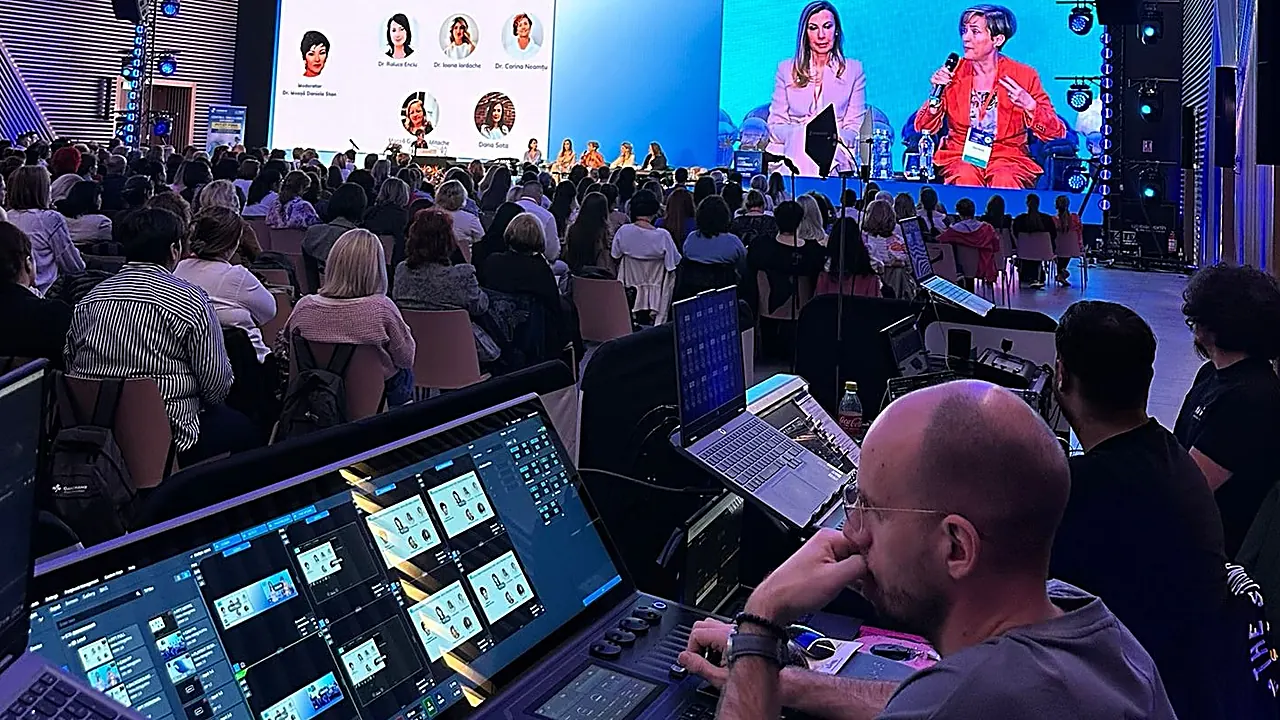
!Q8 Processor in a Live Event System
What is the Q8 and how does PixelHue position this device?
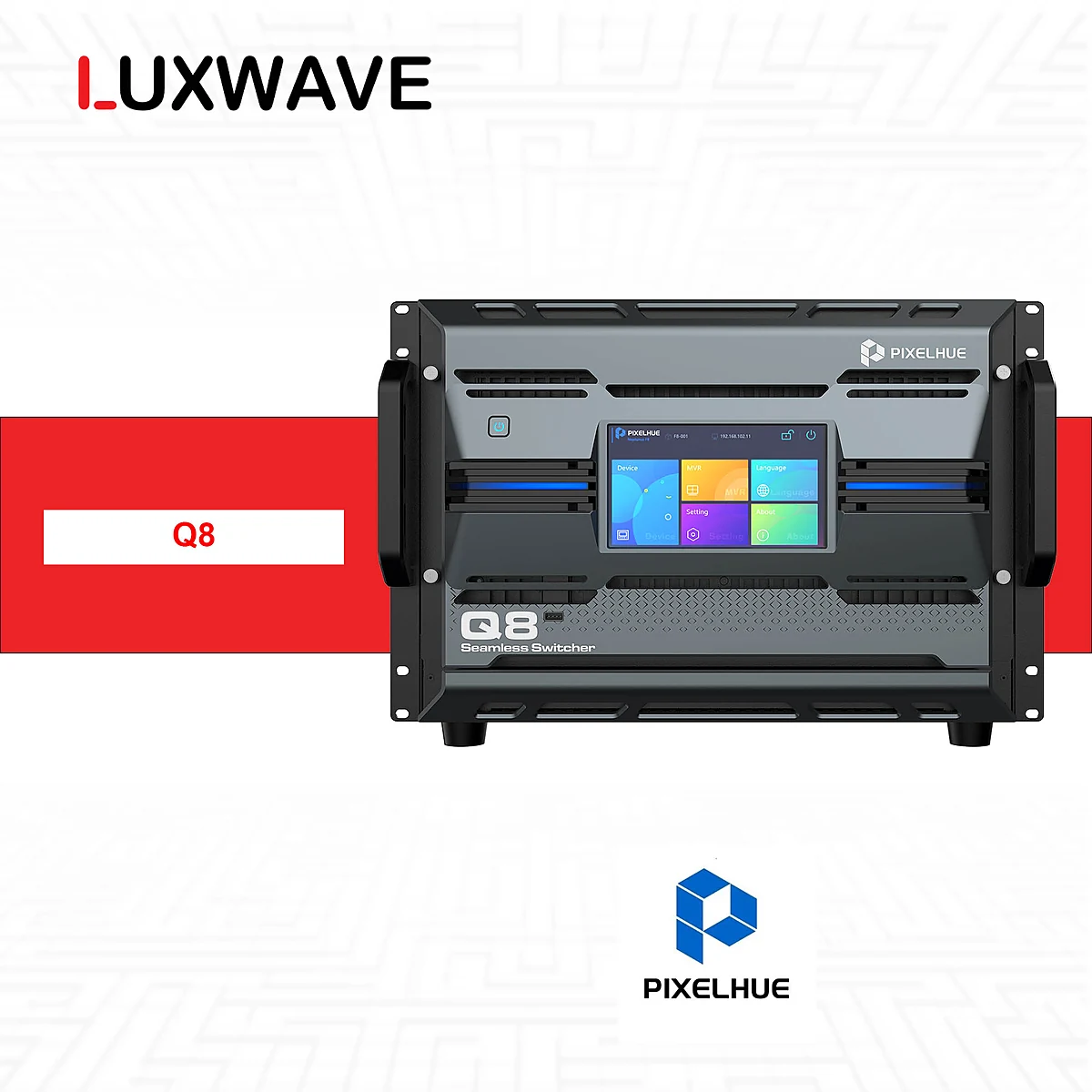
The PixelHue Q8 is PixelHue's flagship 4K/8K multi-screen management system, designed for LED configurations with multiple sources, numerous screens, complex processing layers, and live operation demands. According to technical data, the Q8 supports up to 72×4K interfaces, 2+1 redundant power supplies, and Full-Link Backup for inputs, outputs, or the entire device. These features indicate that the Q8 is not just for displaying signals on screens but also for coordination, monitoring, and redundancy in serious production environments.
The Q8 is positioned at the image processing layer before the LED control system. The Q8 does not replace cabinets, receiving cards, or screen configuration software; it handles how multiple video sources are ingested, distributed, monitored, have presets recalled, and are sent to the display infrastructure. If you are wondering about the role difference between a switcher and a splicer, the article What's the Difference Between a Switcher and a Splicer? provides a foundational understanding before finalizing a configuration.
A key differentiator of the Q8 compared to simpler processors is its design for multi-zone display systems. A large stage might have a main screen, secondary screens, decorative LED strips, and a separate feed for broadcasting. A broadcast studio or command center may require multiple sources, monitoring screens, and layout presets. The Q8 has clear value in such scenarios.
As a flagship device, the Q8 can also be easily mischosen if based solely on the mentality that "higher specs are always better." An LED system with a single source, few display zones, and no need for system-level backup will struggle to fully utilize the Q8's capabilities. For such cases, it's advisable to compare it with the PixelHue P20 or a more compact processor.
What are the Key Q8 Specifications to Read Carefully?
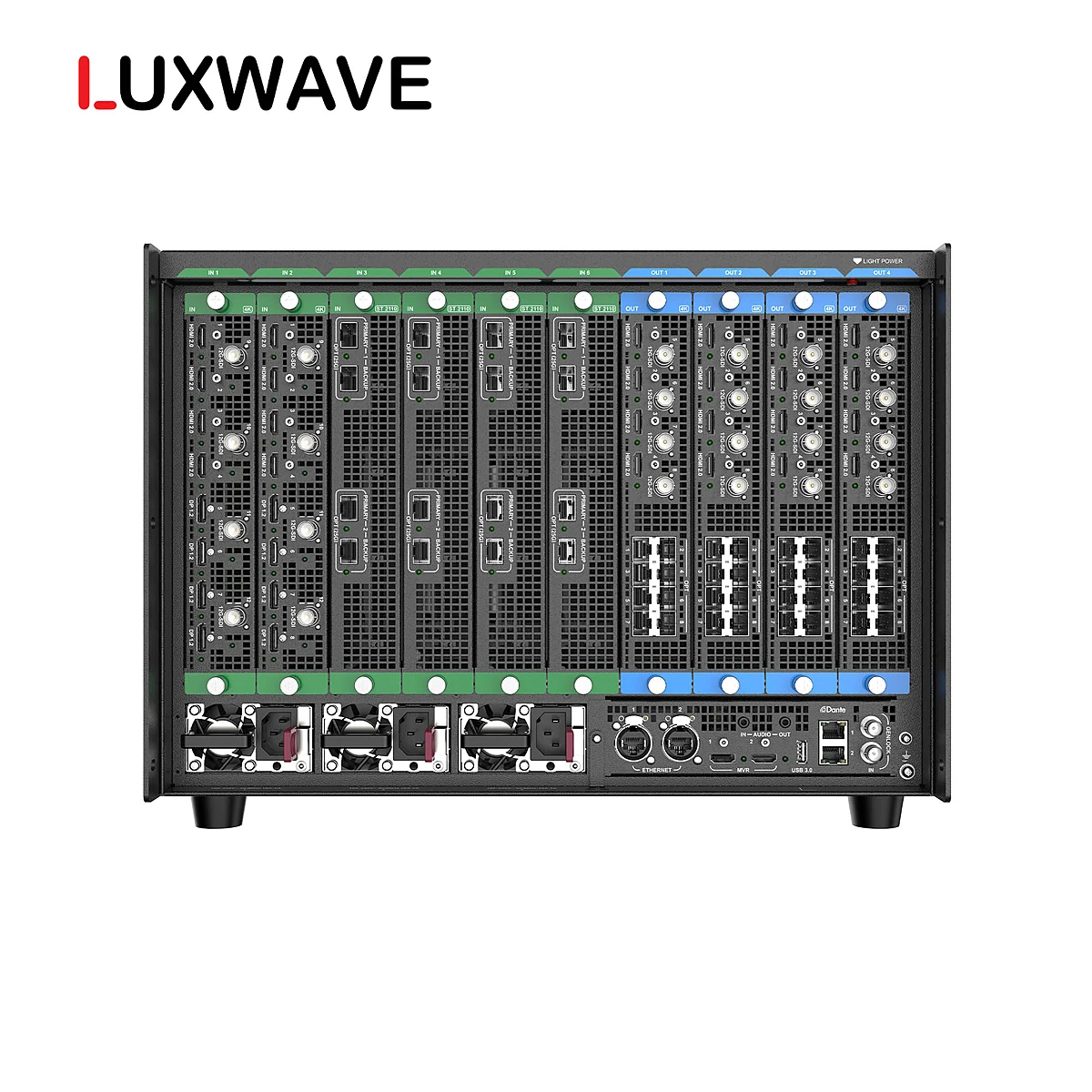
The first group of specifications to examine is the simultaneous input/output capacity. The technical specifications state that the Q8 has up to 48×4K inputs and 16×4K outputs simultaneously, with all outputs capable of being used as AUX. This is crucial for multi-screen systems because outputs are not just for the main program feed; AUX outputs can serve secondary screens, monitoring, dedicated display zones, or feed into another part of the workflow. When designing, it's essential to accurately count the sources, outputs, and the role of each connection.
The figure of 72×4K interfaces also needs careful interpretation. It indicates the maximum interface capacity of the Q8 system but should not be interpreted as every port running simultaneously in the same manner. In practical design, the simultaneous limits of 48×4K inputs and 16×4K outputs are the data points to incorporate into the signal diagram.
The second group of specifications concerns connectivity. The Q8 supports HDMI2.0, 12G-SDI, 10G SFP+, and ST2110. For events and broadcast, HDMI is common for computers or media servers; SDI is suitable for camera workflows; SFP+ and ST2110 relate to professional fiber optic or IP video infrastructure. The Q8's value lies in its ability to consolidate multiple signal types into a single management system.
The Q8 also features single input cards with 12×4K capacity, offering options for 8/12 ports supporting 8×4K@60 simultaneously per the technical specifications. This detail should be included in the configuration from the outset, as the system's capability depends not only on the chassis but also on the chosen cards. A common mistake is treating the Q8 model as a fixed configuration, when projects require specifying input cards that match the actual number of sources, resolutions, and frame rates.

What are the Uses of MVR, HDR, Presets, and Keyframes on the Q8?
MVR is a highly practical feature for live systems: it allows the operator to view multiple sources, states, and display zones before sending the final image to the main screen. The Q8 has 2× 4K MVR according to its technical specifications, suitable for projects where technicians cannot operate by "guessing" if the source is correct or not. When a program includes cameras, slides, background videos, and secondary screens, MVR helps the operations team verify content before changing the image in front of the audience.
HDR on the Q8 includes SDR, HLG, and HDR10. These are not just cosmetic labels for the configuration but capabilities that make the processor more compatible with modern content sources and workflows requiring serious brightness and color gamut. However, HDR is only valuable when the entire signal chain is designed correctly: the source, processor, controller, LED screen, cameras, and testing methods must all align.
Layer presets and keyframes enable the Q8 to better serve programs with changing layouts. Presets allow recalling a pre-configured layer or display zone setup; keyframes enable image changes to be controlled more scriptably. In event stages, this is useful when transitioning between speeches, opening clips, product presentations, and live streaming segments without the operator having to rebuild the layout from scratch during the show.
LCD bezel compensation is a notable detail for systems with LCD screens or display zones requiring bezel correction. This feature indicates that the Q8 is not solely designed for standalone LED screens; it can participate in hybrid display systems where image consistency across multiple surfaces is essential.

How Does the Q8 Connect with NovaStar and Fiber Optic Systems?
The Q8 supports single-mode fiber transmission up to 10KM according to its technical specifications. This is important for large stages, control centers, exhibition halls, or projects where the control room is distant from the screens. Instead of running multiple long and complex copper cables, fiber optic systems simplify transmission routes, especially for long distances and high stability requirements. Design still requires proper planning of cables, modules, connection points, and redundancy measures.
A valuable point for the Vietnamese market is that the Q8 can directly connect optically with NovaStar VX1000, NovaPro UHD Jr, H series, MCTRL 4K, and MX40 Pro. This answers the question "Can the Q8 be used with NovaStar?" with a clear yes, provided the system diagram is designed correctly. In many configurations, the Q8 handles sources, MVR, HDR, presets, and backup upstream, while NovaStar handles the downstream LED control layer.
This integration is logical because PixelHue and NovaStar do not always operate at the same functional level. The PixelHue Q8 excels in multi-screen management, multiple 4K sources, MVR, and backup. NovaStar excels in the familiar LED controller ecosystem, especially when technical teams are already proficient with NovaStar sending cards, receiving cards, and configuration software. The article PixelHue Q8 vs. NovaStar H Series provides a deeper comparison of roles for projects considering both systems.
When designing the connection, don't just ask "can it plug in?" but rather "how will the signal flow through the workflow?" Which path is the main program, which is AUX, which is backup, which sources does MVR monitor, and what logic does the downstream NovaStar receive signals under. Without answering these questions, the system can easily become confused when the actual program requires source changes or signal failures occur.
Which Projects Should Use the Q8, and Which Don't Need It Yet?
The Q8 should be considered for projects with multiple display zones, numerous 4K sources, and complex production requirements. Typical examples include broadcast, large-scale events, command centers, multi-screen LED systems in large conferences, or projection spaces requiring numerous presets. If the system needs 48×4K inputs and 16×4K outputs simultaneously, or requires 2× 4K MVR for safe operation, the Q8 is right in its value zone.
For broadcast and livestreaming, the Q8 is noteworthy because systems typically have multiple signal sources coexisting: cameras, graphics computers, video playback, program feeds, and auxiliary feeds. Operators need to preview before going live, require backup in case of incidents, and need to ensure stable signal processing throughout the chain. Here, the Q8 is part of a strategy to mitigate operational risks.
For command centers, the Q8 is more suitable when the display system is not just a static canvas. If the operations room requires multiple layouts, numerous data sources, multiple viewing zones, and the ability to recall presets, the Q8 has a clear justification. If the screen only displays a fixed dashboard from a single computer, a reassessment is needed to avoid overspending on unused capabilities.
For small meeting rooms, single-source showrooms, or digital signage with static content, the Q8 is usually not the first choice. These projects should start by asking about pixel pitch, screen size, brightness, viewing distance, and a budget-appropriate processor. The article How to Choose LED Pixel Pitch in 2026 will be more useful in the initial stages, before moving to the flagship processor layer.
Conclusion: Is the PixelHue Q8 the Right Choice?
The PixelHue Q8 is the right choice when a project is complex enough to require a true 4K/8K multi-screen management system: multiple sources, multiple outputs, multiple display zones, MVR, HDR, presets, keyframes, and backup. Specifications like 72×4K interfaces, 48×4K inputs, and 16×4K simultaneous outputs only have meaning when applied to a specific signal diagram. Without a clear workflow, even a flagship device can become an suboptimal investment.
At Luxwave, the practical recommendation is not to start with the question "should I buy the Q8?" but rather with a signal diagram. List the input sources, resolutions, number of outputs, AUX zones, MVR needs, connection types, backup plans, and downstream LED control equipment. From there, determine if the Q8 is the central processor, part of a system coordinated with NovaStar, or not yet needed in the configuration.
If the project falls into the broadcast, large event, command center, or high-end multi-screen system category, the Q8 is a strong contender. If the project only needs stable display from a single source, the problem can likely be solved with a more compact configuration. The correct decision lies in choosing equipment that matches operational risks, technical team capabilities, and actual display requirements.
Pitfalls
Common mistakes
- Choosing the Q8 simply because it's a flagship without first creating a signal diagram, defining the number of 4K sources, outputs, display zones, and operational scenarios.
- Confusing 72×4K interfaces with the number of simultaneously active inputs/outputs; one must read the separate limits of 48×4K inputs and 16×4K simultaneous outputs.
- Overlooking MVR and backup during live system design; if operators lack sufficient source monitoring or a contingency plan, a powerful configuration remains risky.
- Using the Q8 for single-source projects or small meeting rooms when a simpler processor could better meet needs cost-effectively.
FAQ
Frequently asked questions
What is the PixelHue Q8 device?
The PixelHue Q8 is PixelHue's flagship 4K/8K multi-screen management system, used for LED projects with multiple sources, display zones, and complex live operation requirements. The device sits at the image processing layer before the LED control system, managing inputs, outputs, MVR, HDR, presets, keyframes, and backup.
Is the Q8 suitable for all LED screen projects?
No. The Q8 is suitable for projects with multiple 4K sources, numerous outputs, multiple display zones, or serious backup and MVR requirements. For small meeting rooms, single-source screens, or display systems with minimal changes, the Q8 configuration often exceeds practical needs, and simpler devices should be considered.
How should the 72×4K interface on the Q8 be understood?
The 72×4K interface indicates the overall connection capacity of the Q8 system but should not be interpreted as all ports running simultaneously in the same role. According to the technical specifications, the simultaneous operating limits must be read separately: up to 48×4K inputs and 16×4K simultaneous outputs.
What is the purpose of 4K MVR on the Q8?
MVR allows operators to monitor multiple sources, states, and display zones before sending the image to the main screen. The Q8's technical specifications list 2× 4K MVR, suitable for live environments requiring content verification, source error detection, and controlled preset operations.
Can the Q8 be used with NovaStar systems?
Yes. Technical data indicates the Q8 can directly connect optically with NovaStar VX1000, NovaPro UHD Jr, H series, MCTRL 4K, and MX40 Pro. In many projects, the Q8 handles image processing upstream, while NovaStar manages the downstream LED control layer.
What is the significance of HDR on the Q8 for LED screens?
The Q8 supports SDR, HLG, and HDR10, enabling the processing system to be more compatible with modern content sources and workflows requiring serious brightness and color gamuts. Its practical value depends on the entire signal chain—content, cameras, LED screens, and operational setup—so HDR needs to be tested across the complete signal path.
References
- 1.ManufacturerGenuine PixelHue
- 2.NewsOfficial PixelHue Facebook
- 3.StandardPixelHue Master Academy — Official Training Materials
- 4.DatasheetPixelHue Q8 — Official Product Data